Distinctive Day Codes
Distinctive Days are the days on which a contact center expects unusual traffic, and would like to differentiate from normal days. For instance, you can create distinctive days for mailing a catalog promotion, or for holiday call distribution on Christmas and Thanksgiving.
WFO Live tracks distinctive day activities in a dedicated database to keep it separate from normal day activities. WFO Live also allows you to edit or delete an existing distinctive day code and description.
What do you want to do?
Tasks in this Topic Include:
- Create Distinctive Day Codes
- View a Distinctive Day
- Modify a Distinctive Day
- Delete Distinctive Day Codes
Related Tasks:
Watch and Learn:
Create Distinctive Day Codes
This option allows you to select a date in the Selected Forecast Data table in the Forecast menu and create a new distinctive day code. Distinctive day codes can be a maximum of three characters. They should be abbreviations of the distinctive day or the special event that you would like to forecast. For example, you could enter CAT as the code for a catalog mailer or MOM for a holiday like Mothers Day. WFO Live allows you to track and forecast an unlimited number of distinctive days.
- Select a date in the Selected Forecast Data table.
- Select Save As Distinctive Day.
- The Save Distinctive Day pop up is displayed.
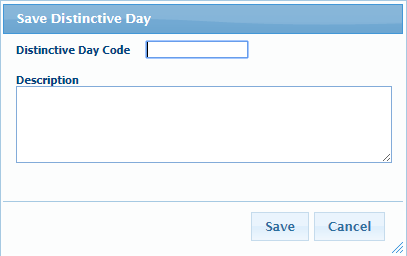
- Enter a 3-character code into the Distinctive Day Code box, enter a Description of the code, and select Save.
- If the code you entered has already been saved
as a Distinctive Day, the Overwrite Distinctive Day pop up is displayed.
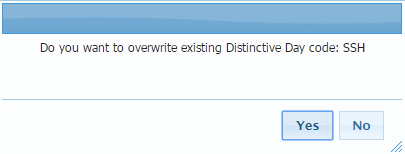
- Select Yes to overwrite the code, or No to return to the Save Distinctive Day pop up, and enter a different code.
View a Distinctive Day
- Select the Distinctive Days tab.
- Select a code from the Distinctive Day Code drop-down menu.
This
will open the selected Distinctive Day and graph. This graph will behave
much like the graph in the Selected Forecast Data section. Highlighting the Totals
row in the table will show the forecasted arrival pattern produced by
the selected Distinctive Day. Selecting specific dates in the table will
show the contribution each day makes to that forecast. Hovering over an
interval in the graph will show volume and handle time per interval.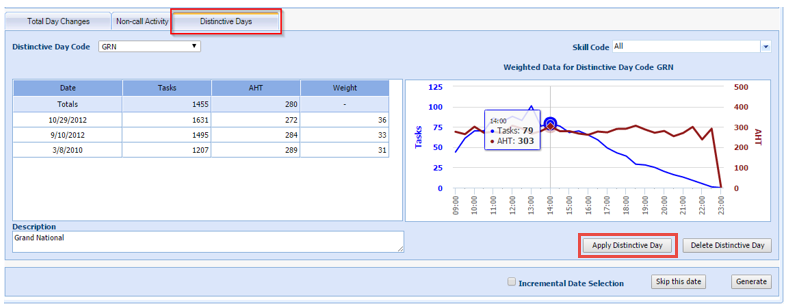
Modify a Distinctive Day
Distinctive Day codes can be modified.
Remove a Row
-
Select Apply Distinctive Day for the code you wish to modify.
-
Highlight the row in the Selected Forecast Data section.
-
Select Remove Row.
-
Select Save as Distinctive Day.
-
The Distinctive Day code that has been applied will automatically populate. To update the existing code click Save.
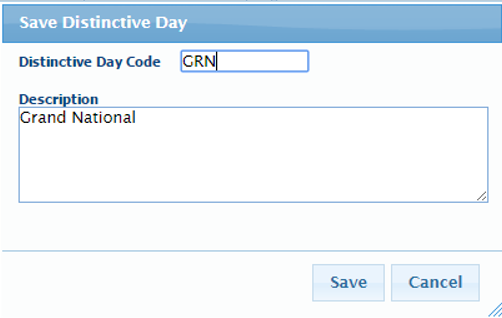
-
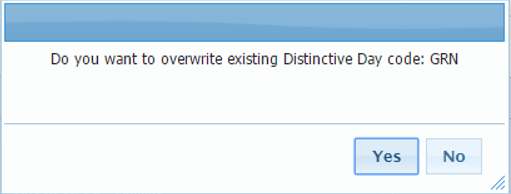
A confirmation message is displayed: Do you want to overwrite existing Distinctive Day code: XXX. Select Yes.
Add or Swap Historical Dates
Apply the Distinctive Day you wish to modify.
- In the Historical Date Selection section, select the date range you wish to populate using the From and To fields then click View Historical.
- Select the Day of Week you wish to view if necessary.
- To add a new row to your Distinctive Day, highlight a row in the table and select Add Date to Selected.
- To swap an existing row with a new date, highlight the date you wish to add in Historical Date Selection, highlight the date you wish to remove in the Selected Forecast Data table, and then select Swap Selected.
- Repeat at necessary, then select Save as Distinctive Day.
- The Distinctive Day Code that has been applied will automatically populate. To update the existing code, select Save.
- A confirmation message is displayed: Do you want to overwrite existing Distinctive Day code: XXX. Select Yes.
Delete Distinctive Day Codes
- Select Forecast - Generate Forecast in the left-navigation menu. Select Go....
- Select the Distinctive Day tab.
- Select the code that you want to delete from the Distinctive Day Code drop-down menu.
- Select Delete Distinctive Day.
- Select one of the following:
- Select Yes to delete the selected code.
- Select No to cancel the process.